Save your recurring lesson slots as templates, then pick a month to create every lesson at once. Lessons that already exist are skipped automatically.
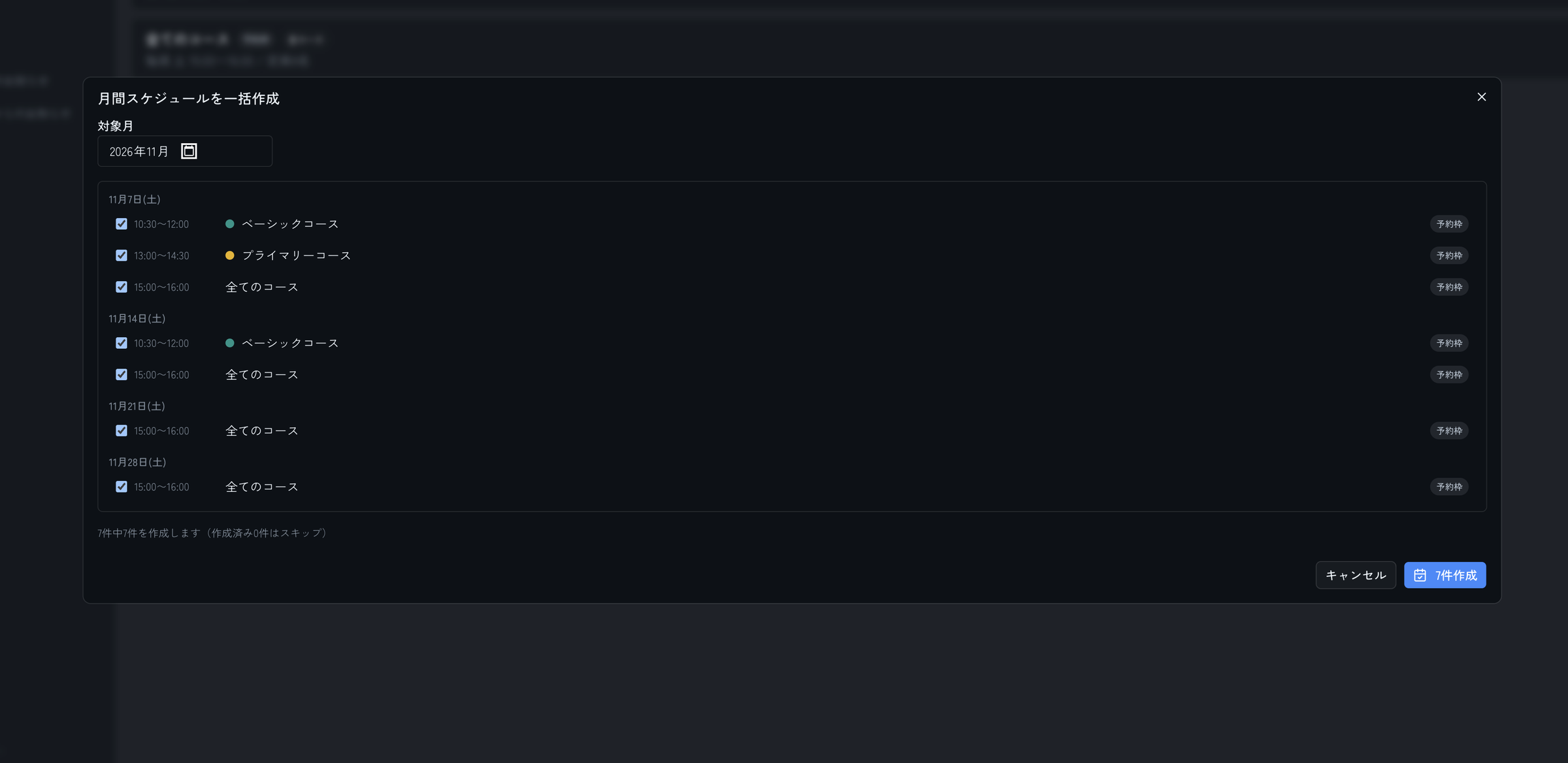
BEFORE / AFTER
BEFORE
WITH E-SPACE
HOW IT WORKS
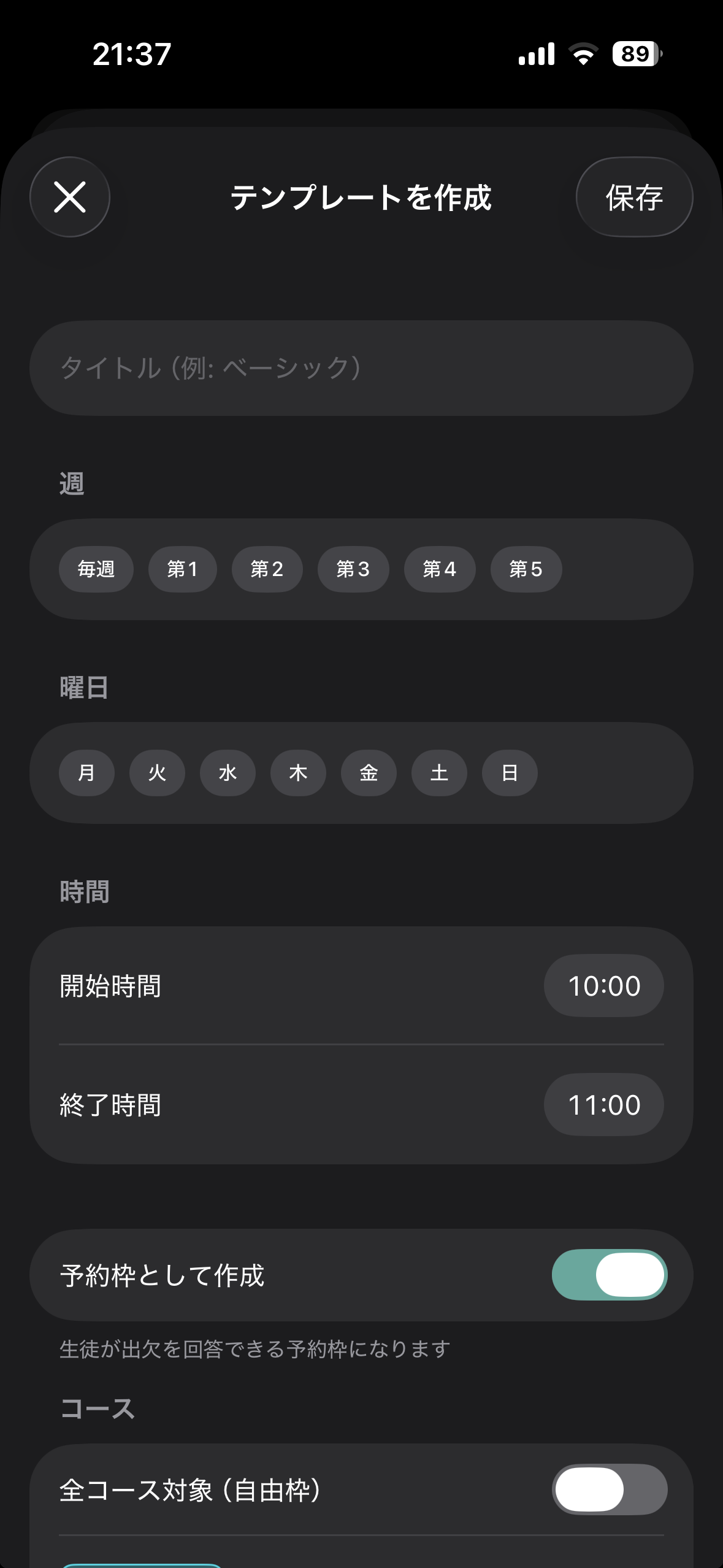
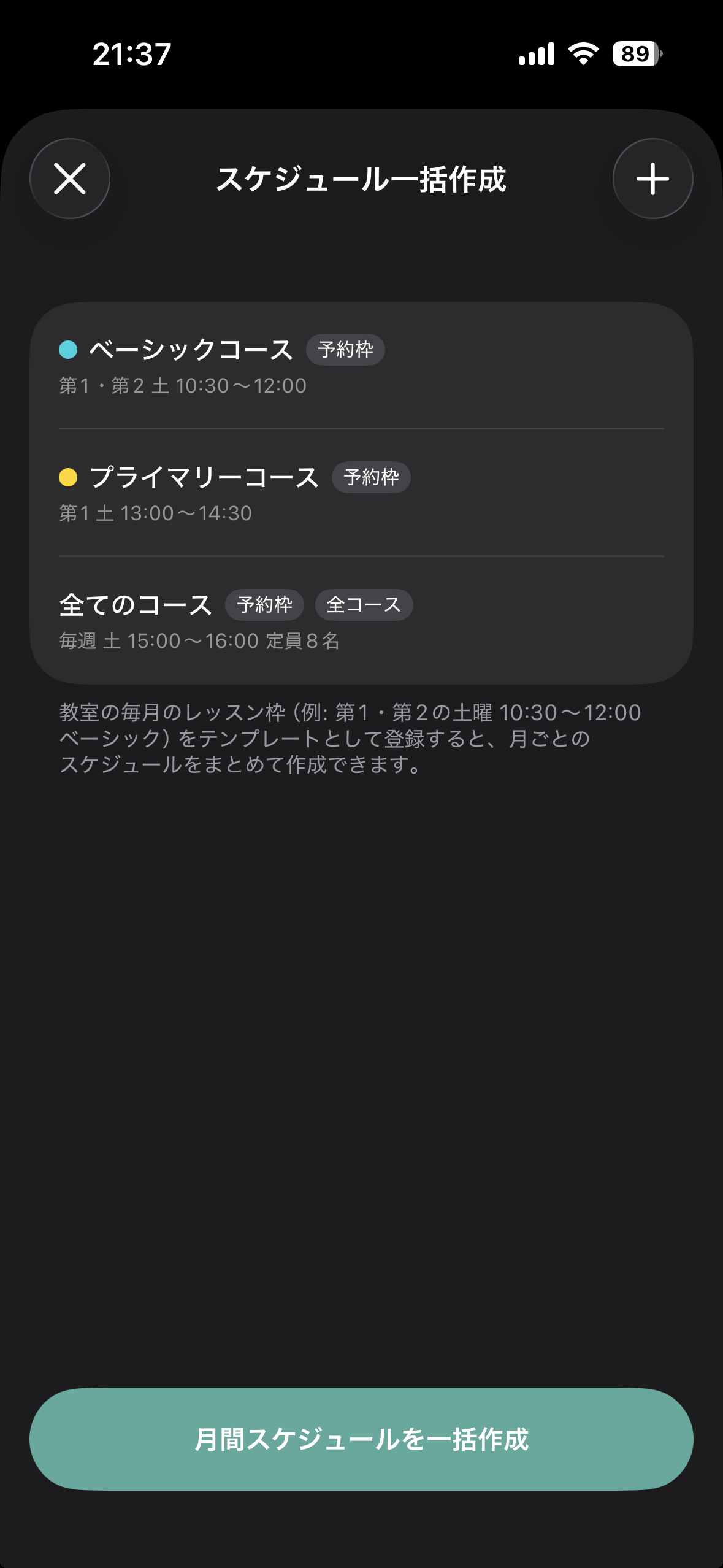
Tap “+” on the Bulk scheduling screen and register a lesson slot that repeats every month.
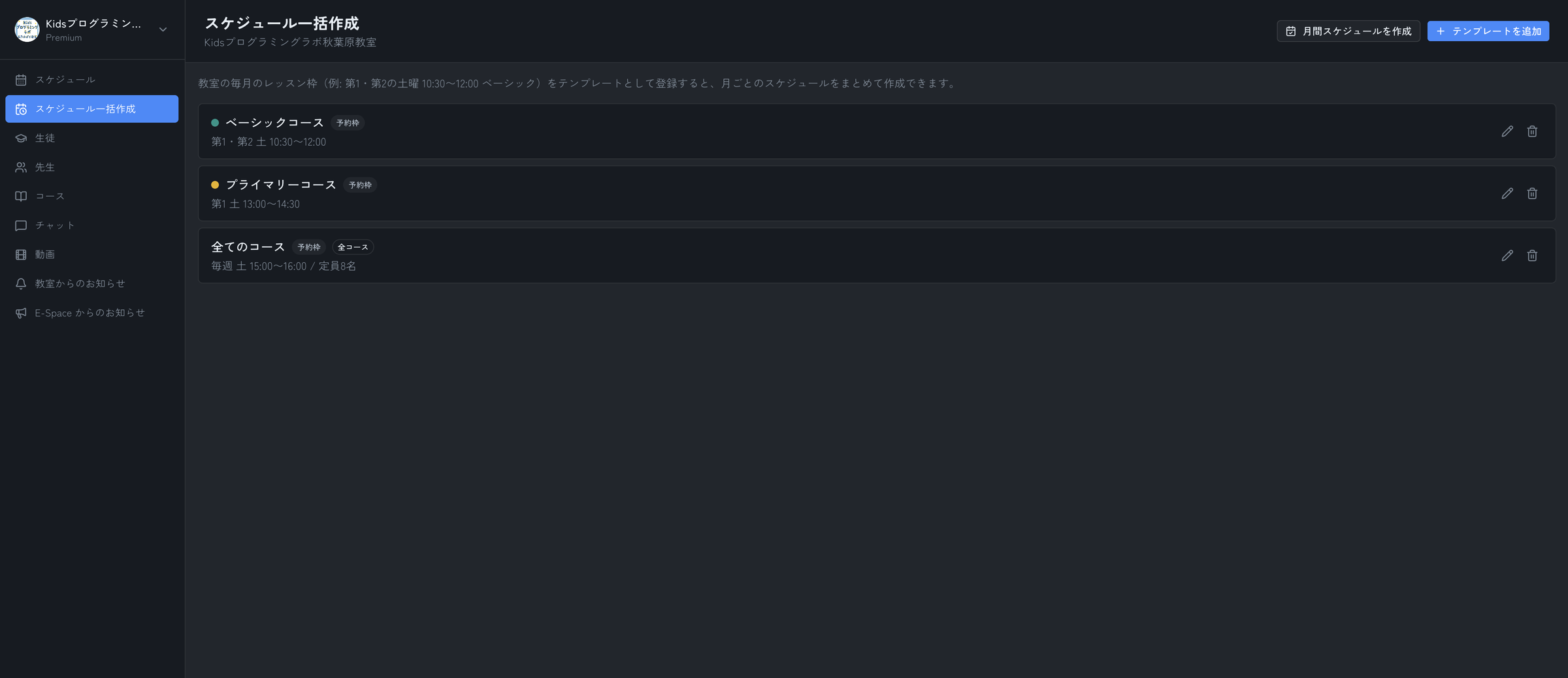
From the template list, tap “Create monthly schedule” and choose the month you want to fill.
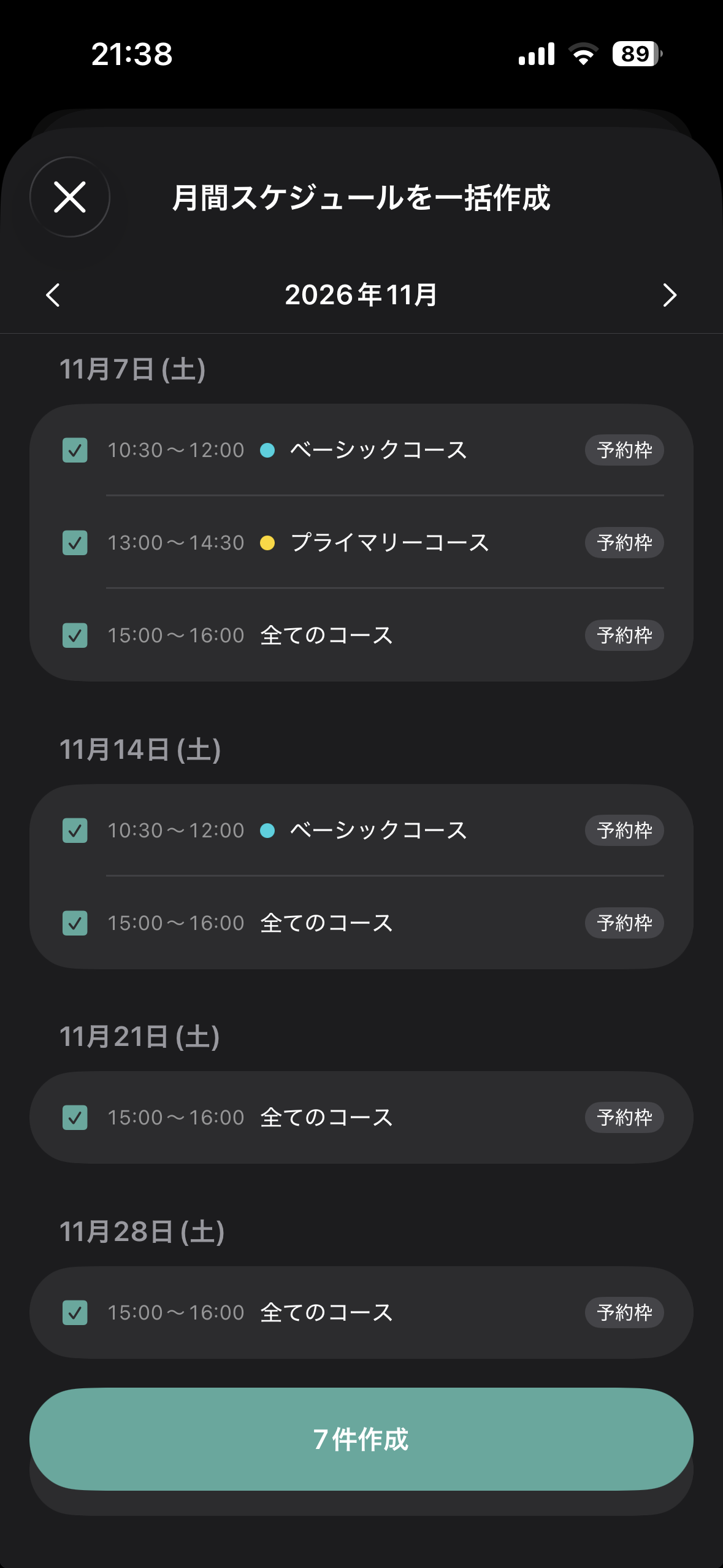
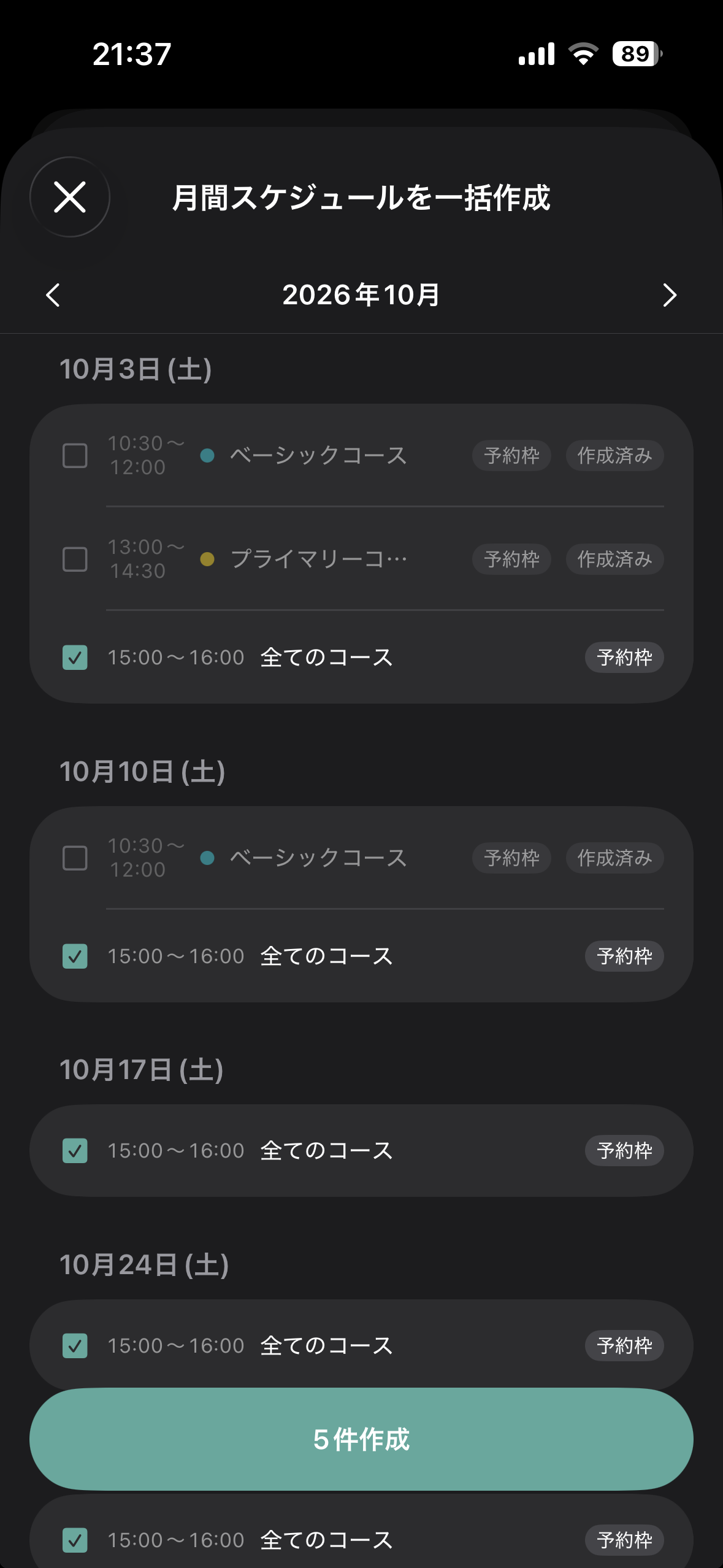
A month of candidates expanded from your templates is listed by date. Review them and press the create button.
TEMPLATE CONTENTS
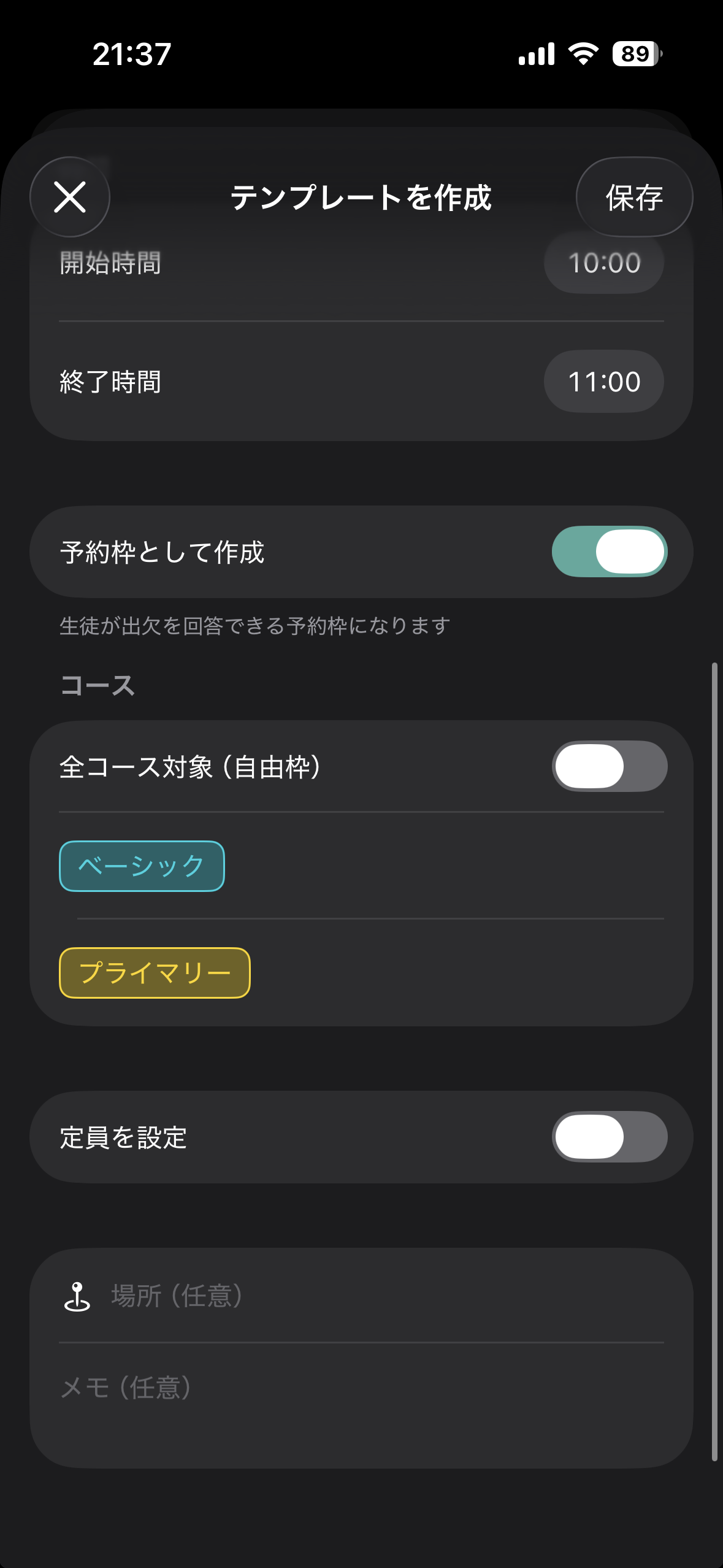
Beyond week, weekday, and time, the lesson details themselves live in the template.
Turn on “Create as reservation slot” and students can respond with their attendance.
Choose the target course, or make it an open slot for all courses.
Set a maximum headcount per slot. Reservations close once it is reached.
Add the room, an online meeting URL, or what to bring — all optional.
BEFORE YOU START
Plan
Templates and bulk creation are not available on the Free plan.
Who can use it
Classroom admins and teacher accounts can add templates and create schedules in bulk.
On deletion
Deleting a template leaves already-created schedules exactly as they are.
E-Space is free to start.
With bulk scheduling on Basic and above, monthly schedule entry is just a few checkboxes.